Managing Users
Invite and manage users who can access and control your MagicBox® account.
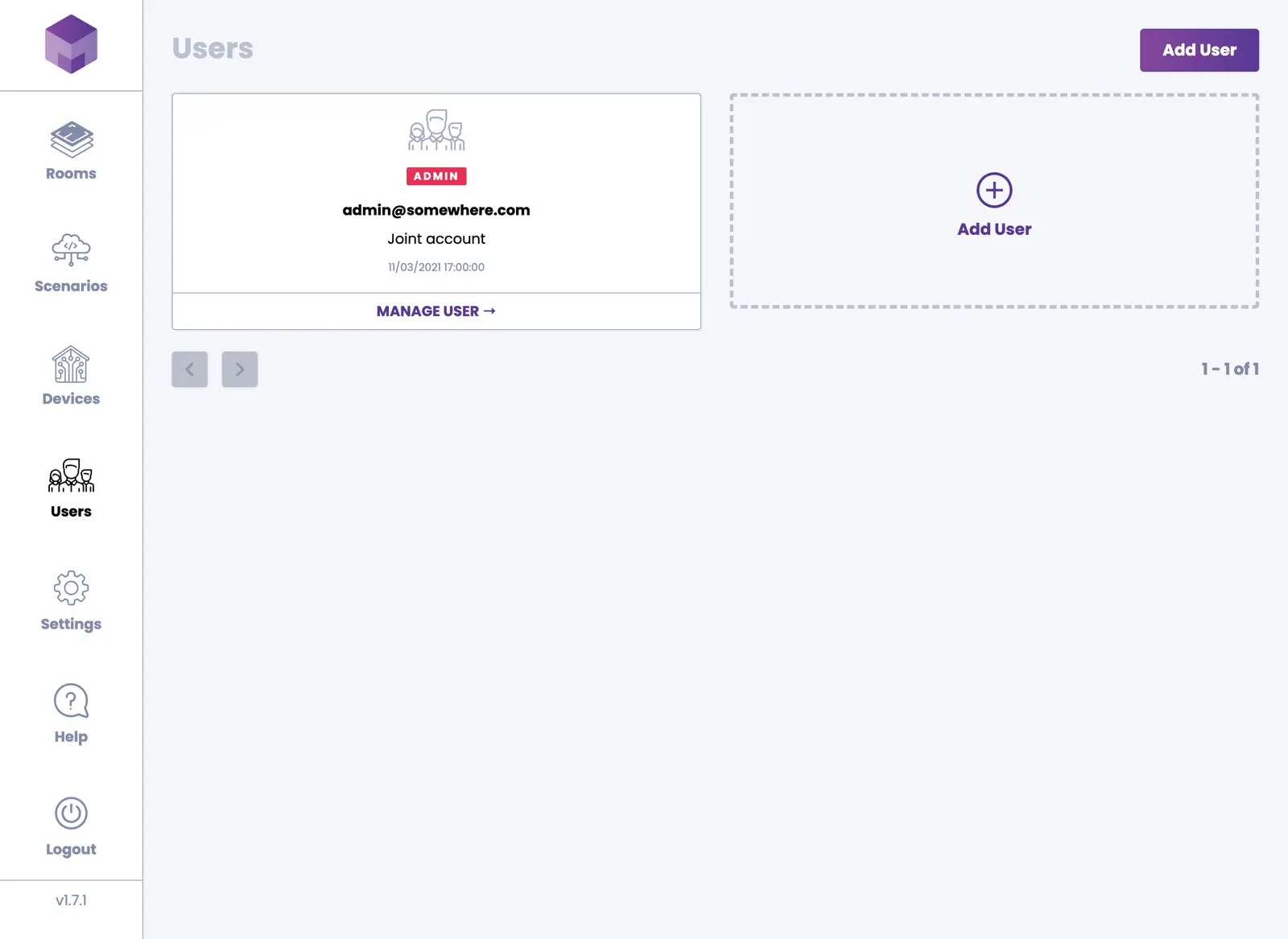
You can create new users to manage the account together with you. They can manage all the rooms related to your account (you can make them administrators) or only specific rooms (you can make them standard users). Click the Users icon on the left-hand navigation to view a list of all current users associated with this account.
Adding a New User
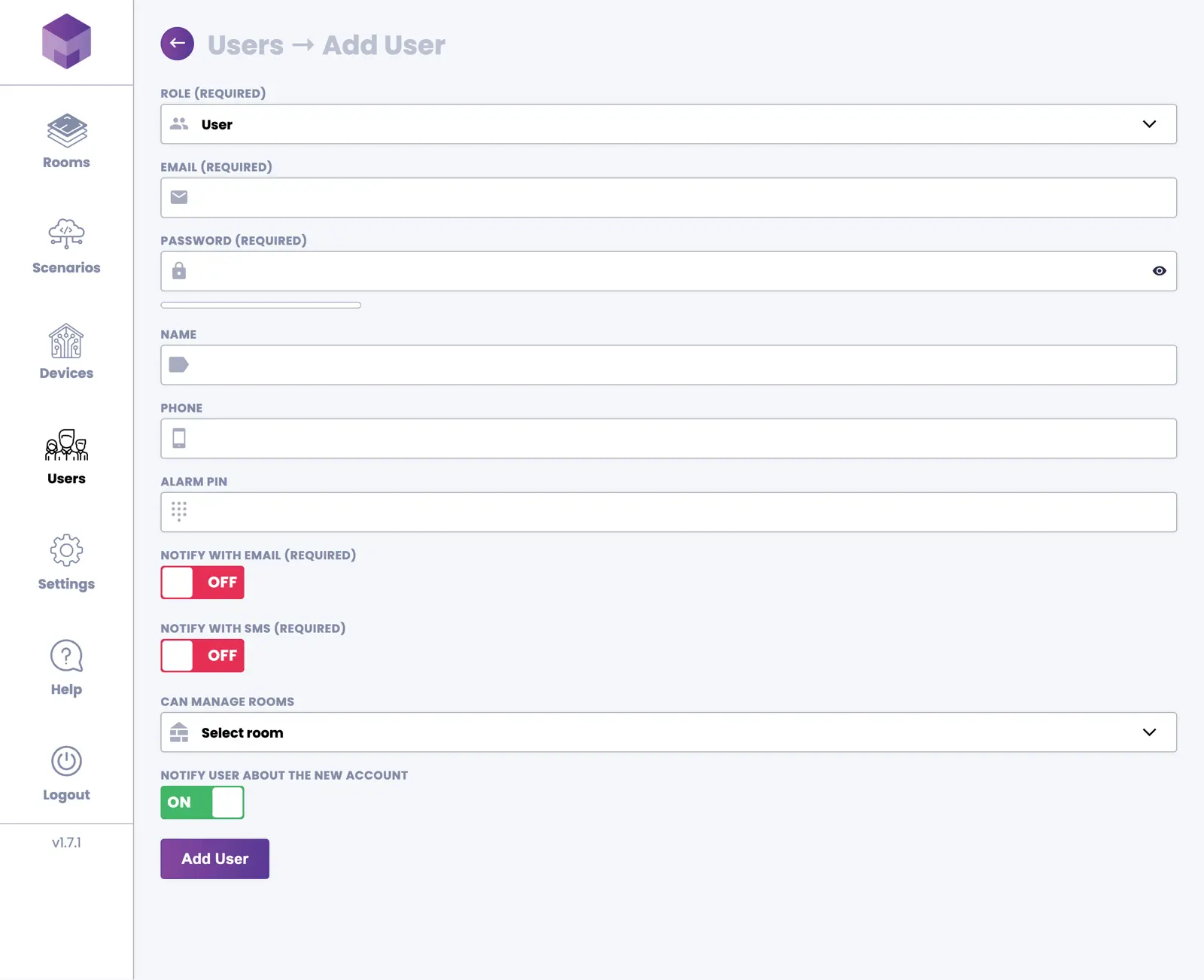
To add a user, click either the Add User button in the top right corner or the large Add User tab. You will be presented with the "Add user" screen.
Following are explanations of the fields on this screen:
Role
There are currently two roles available. The administrator role grants the user complete control over the account. The user role cannot manage other users and can only manage specific rooms.
This must be a valid email address that the user can access. This serves as the login ID and is the only way to recover a lost password.
Password
This is the password the user will use to sign into the application. It should be at least 8 characters long and include numbers. The password strength meter provides a good indication of password security. Users can change their password after logging into their newly created accounts under the Settings tab.
Name & Phone
Name and Phone fields are optional. However, if you want the user to be notified about alarms via SMS, the phone number is required.
Alarm PIN
An alarm PIN is required if you want the user to be able to arm or disarm the security alarm.
Email alarm notifications
Turn ON if you want the user to be notified about security alarm events via email.
SMS Alarm Notifications
Turn ON if you want the user to be notified about security alarm events via SMS.
Send an Email to the User
Turn ON if you would like the user to be notified about their new account. This will not send the password to the user. You can either send the password in a separate email or let the user reset the password via the forgot password link on the login screen.
Once you have filled in all the necessary details, submit the form by clicking the Add User button.
Editing a User
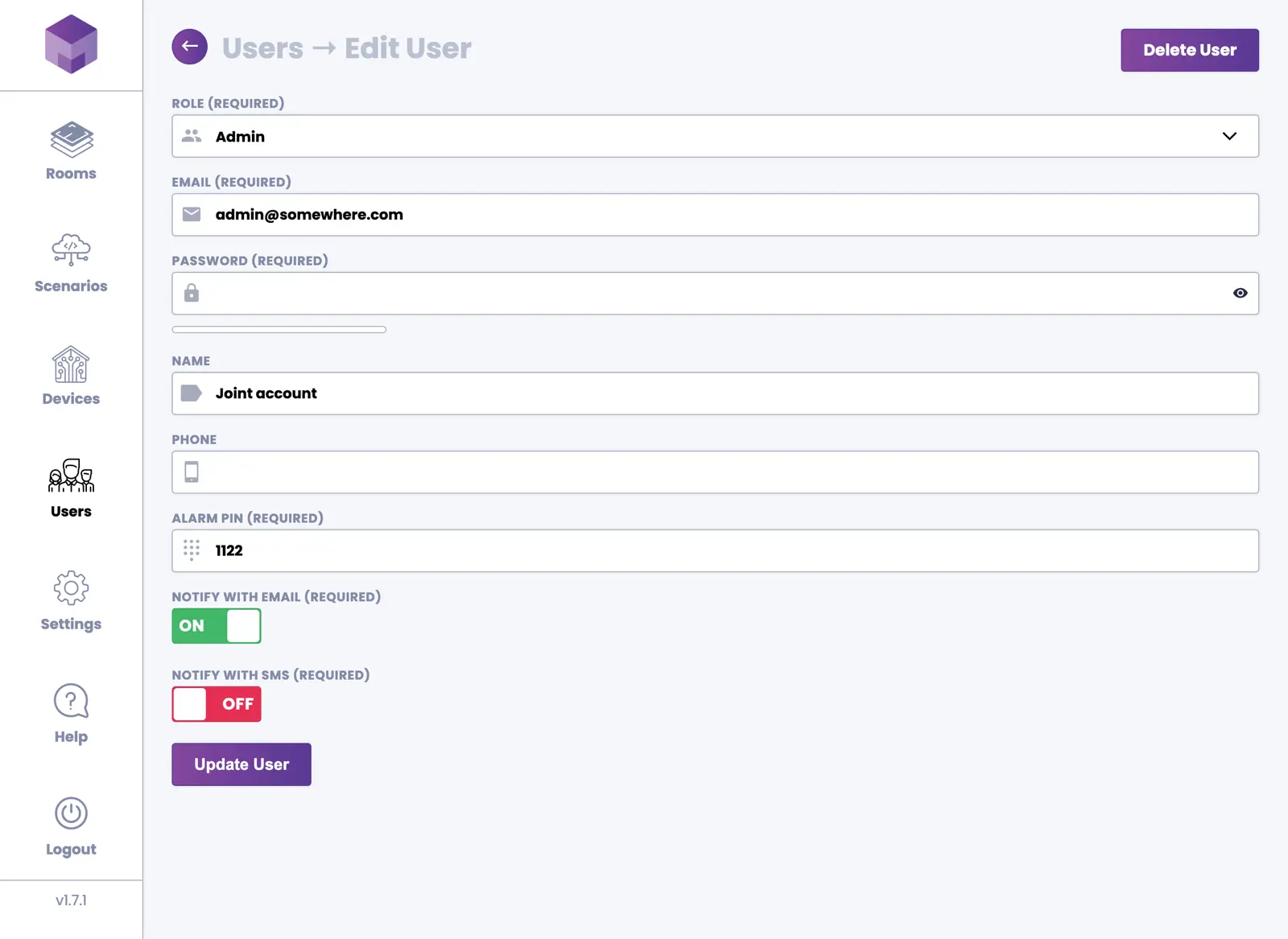
You can edit a user from the main "Users" screen by clicking the Manage User button at the bottom of each user's card. This will take you to the "Edit User" screen, where you can change any settings for the selected user.
Removing a User
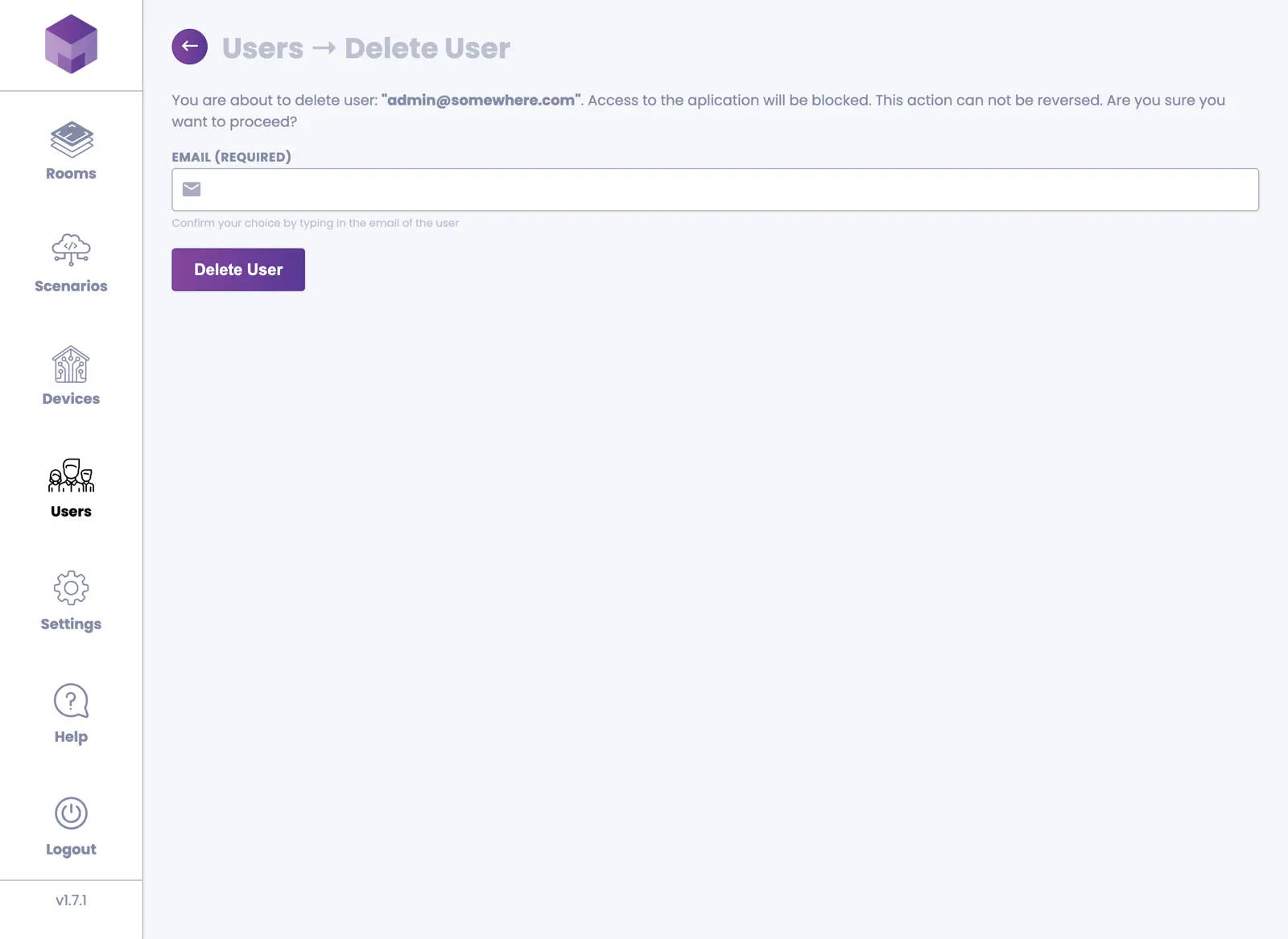
The process of removing a user is similar to editing. Once on the "Edit User" screen, click the Delete User button in the top right corner. You will be taken to the "Delete User" screen. Follow the instructions and click the Delete User button to confirm. This will remove the user from the account, and they will no longer be able to log in.