Managing Devices
You can manage devices from the Devices section in the application. Devices are divided into two categories: MagicBox® devices and MagicSwitch® devices.
1. Adding a Device
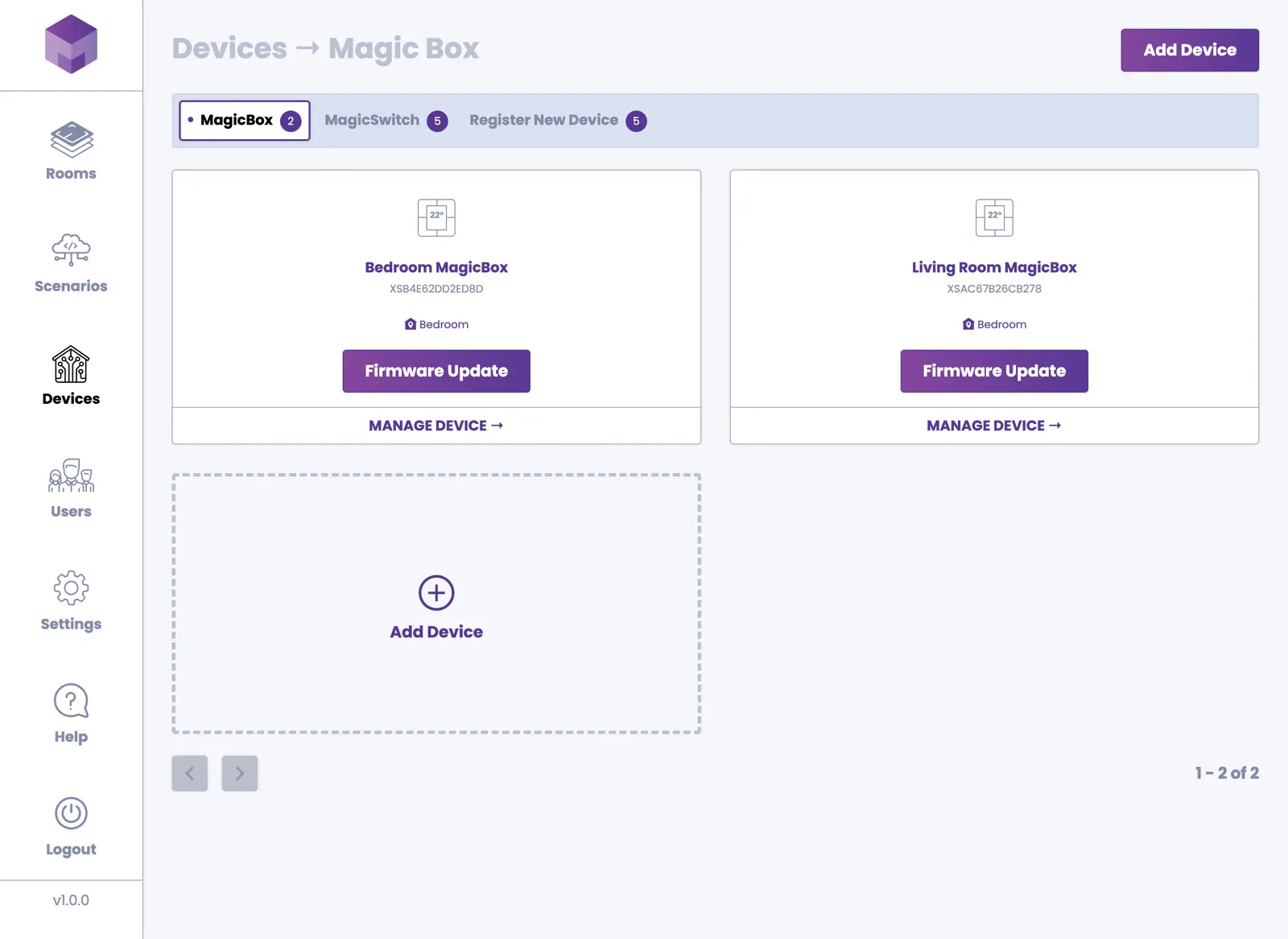
To add a device, press the Devices navigation item if you are not already in that section. Press the large Add Device tile or click the Add Device button in the top right corner. You will be taken to the "Add Device" screen.
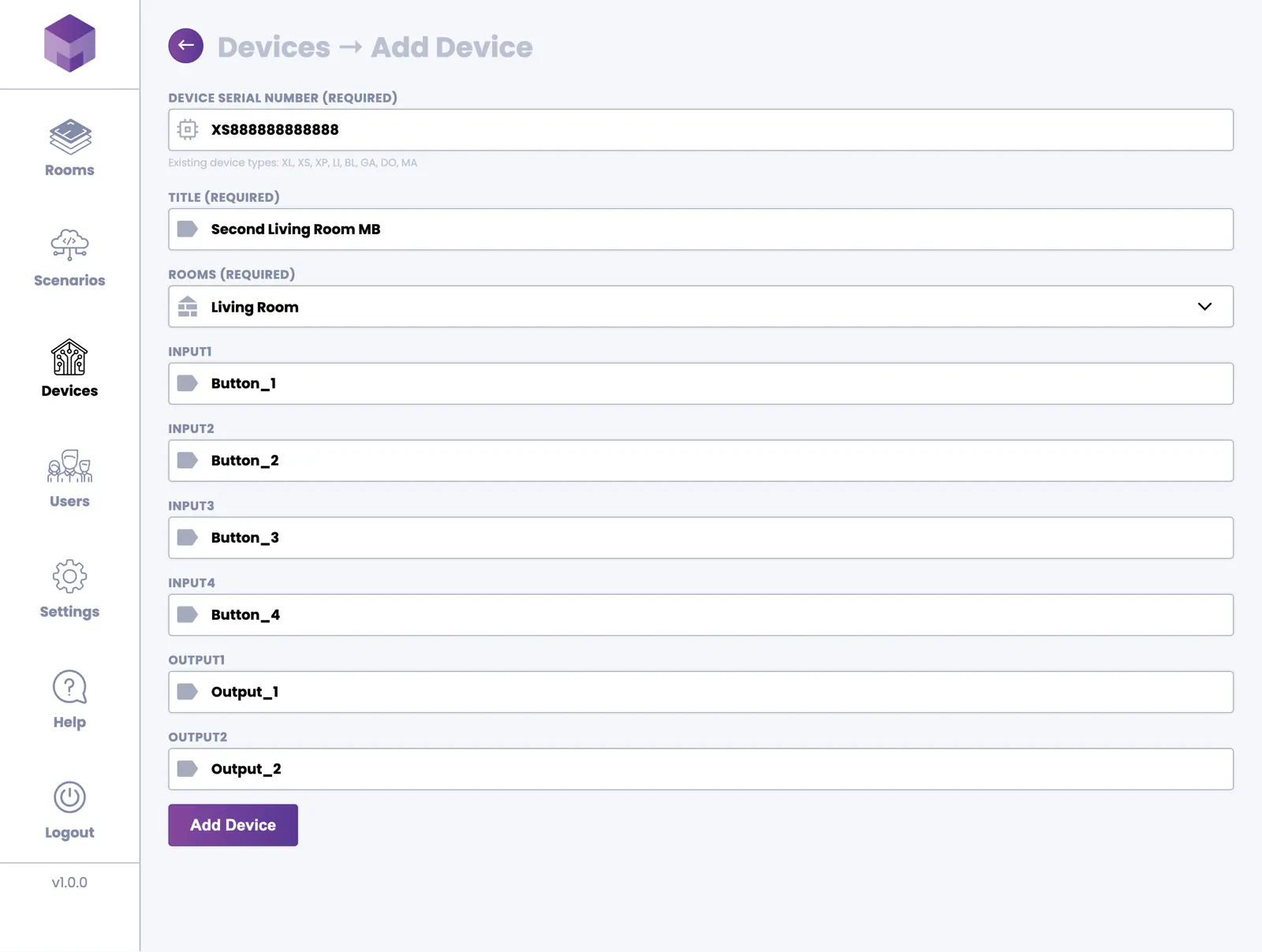
On the "Add Device" screen, you can now enter the device serial number. If you enter the serial number correctly, the application will automatically identify the device type. You will then be able to enter a title and choose a room where you would like the device to be assigned. You will also have the option to name the inputs and outputs on the device for better clarity. Once you are satisfied with your choices, press the Add Device button.
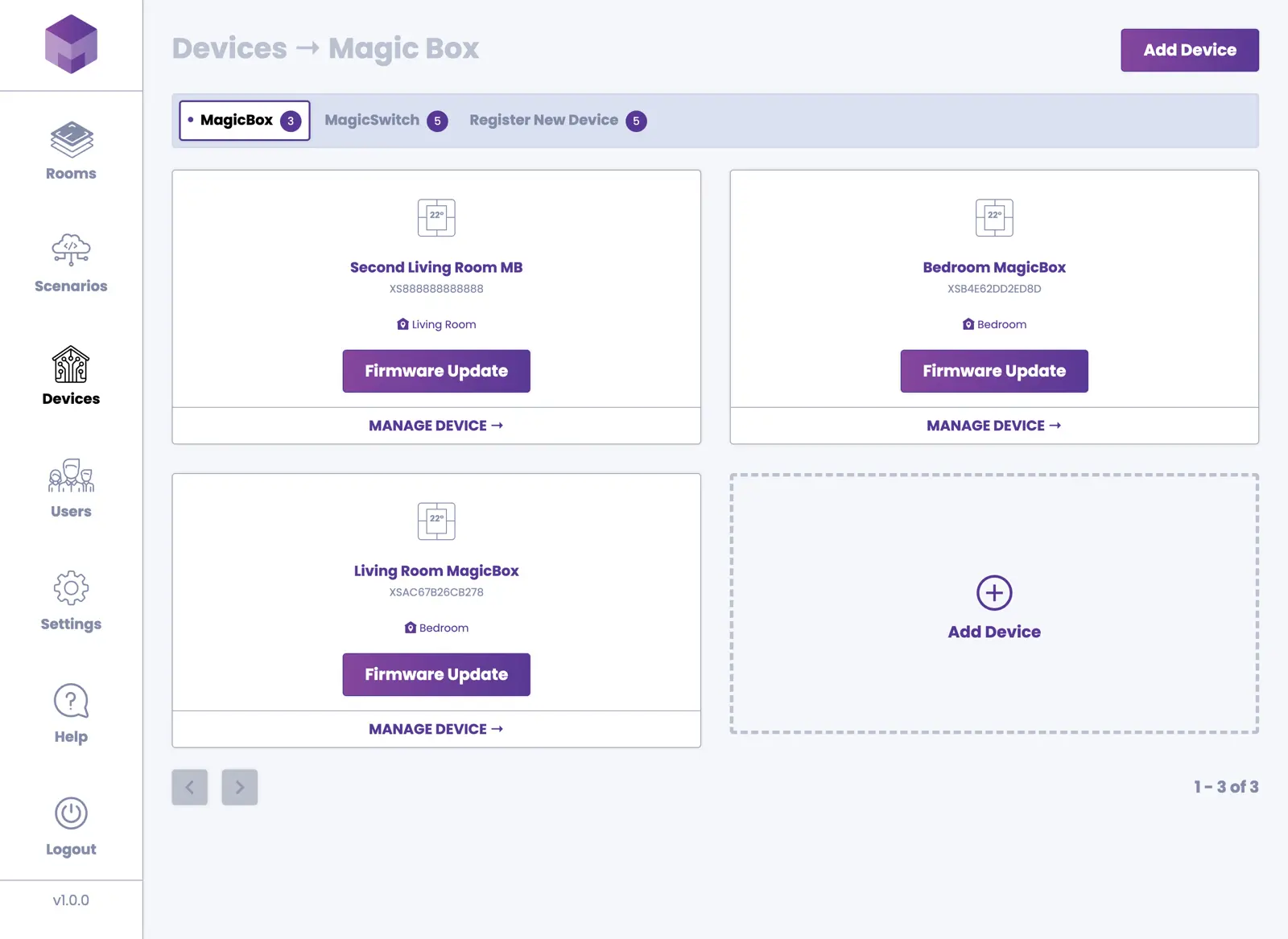
This will create a new device and display it in the Devices section.
You can perform this action for both MagicBox® and MagicSwitch® devices. The process is the same for both device types.
2. Managing a Device
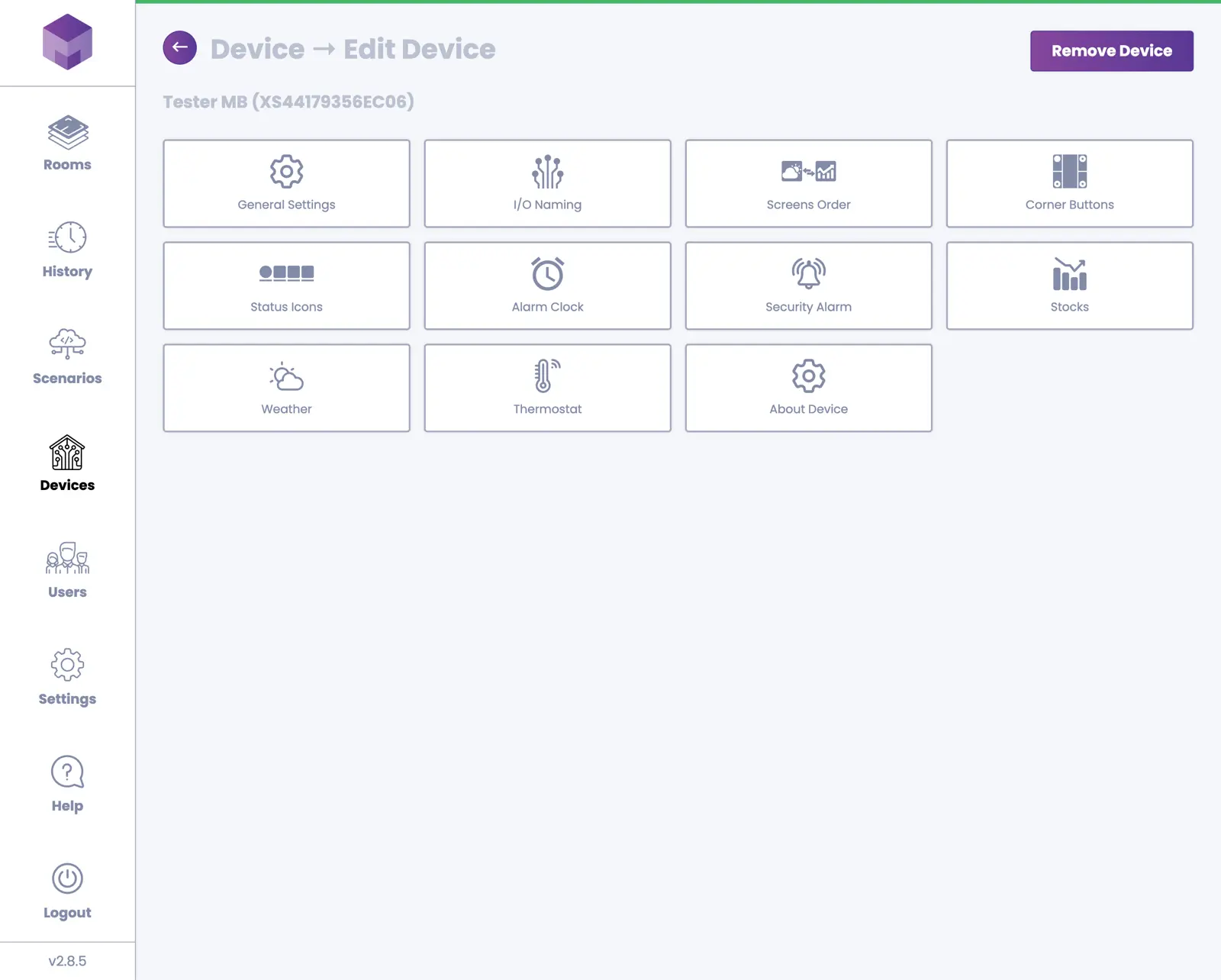
To manage a device, press the "manage device" link at the bottom of the device tile. This will open a list of options for the selected device. Keep in mind that the available options can vary depending on the device type and its capabilities (such as the number of sensors, inputs, and outputs).
Settings Screen
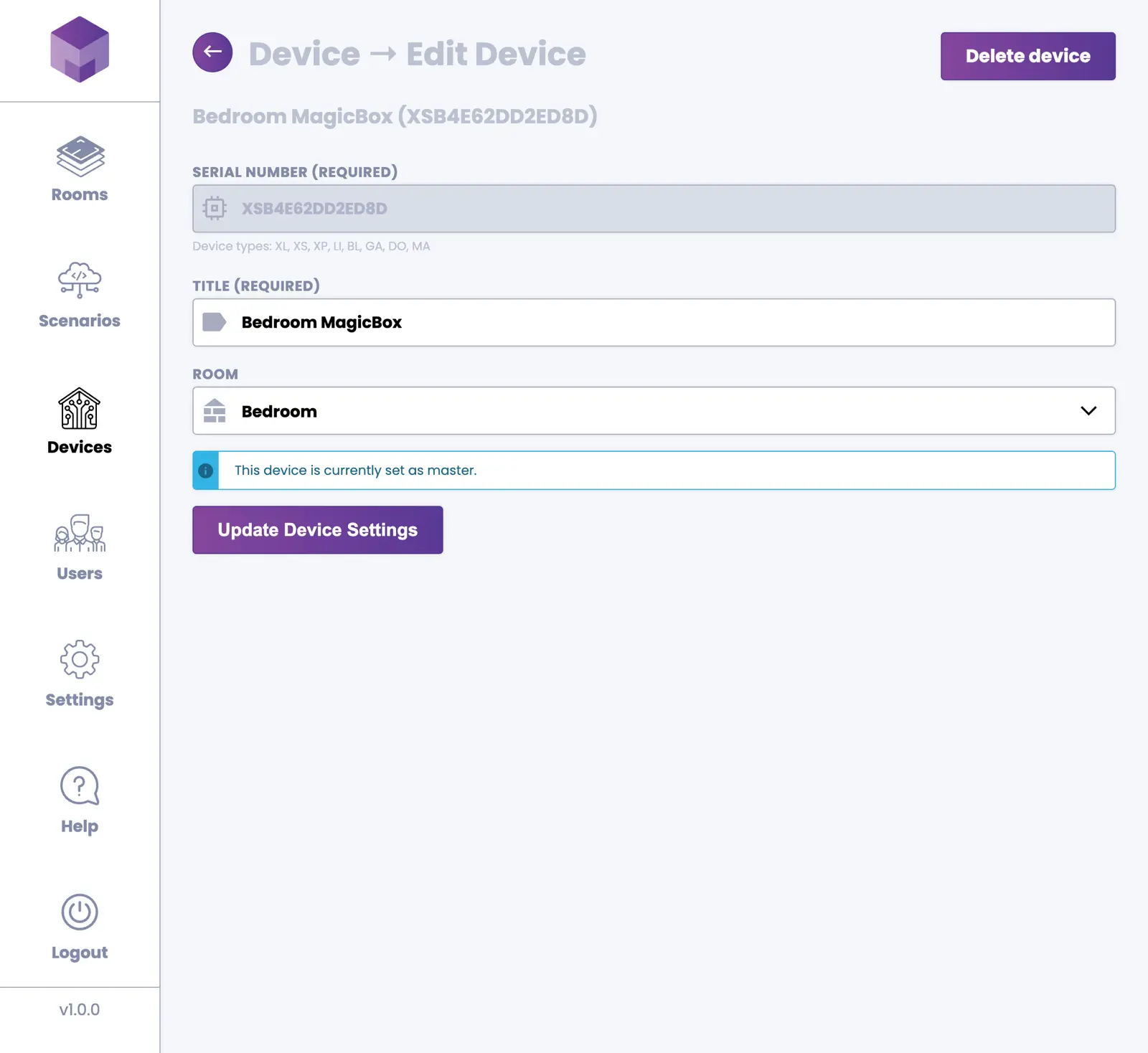
Device settings allow you to change the device title or select a different room to which the device should be assigned. There is always one device marked as "master". This is the main device that manages all other devices in your system.
I/O Screen
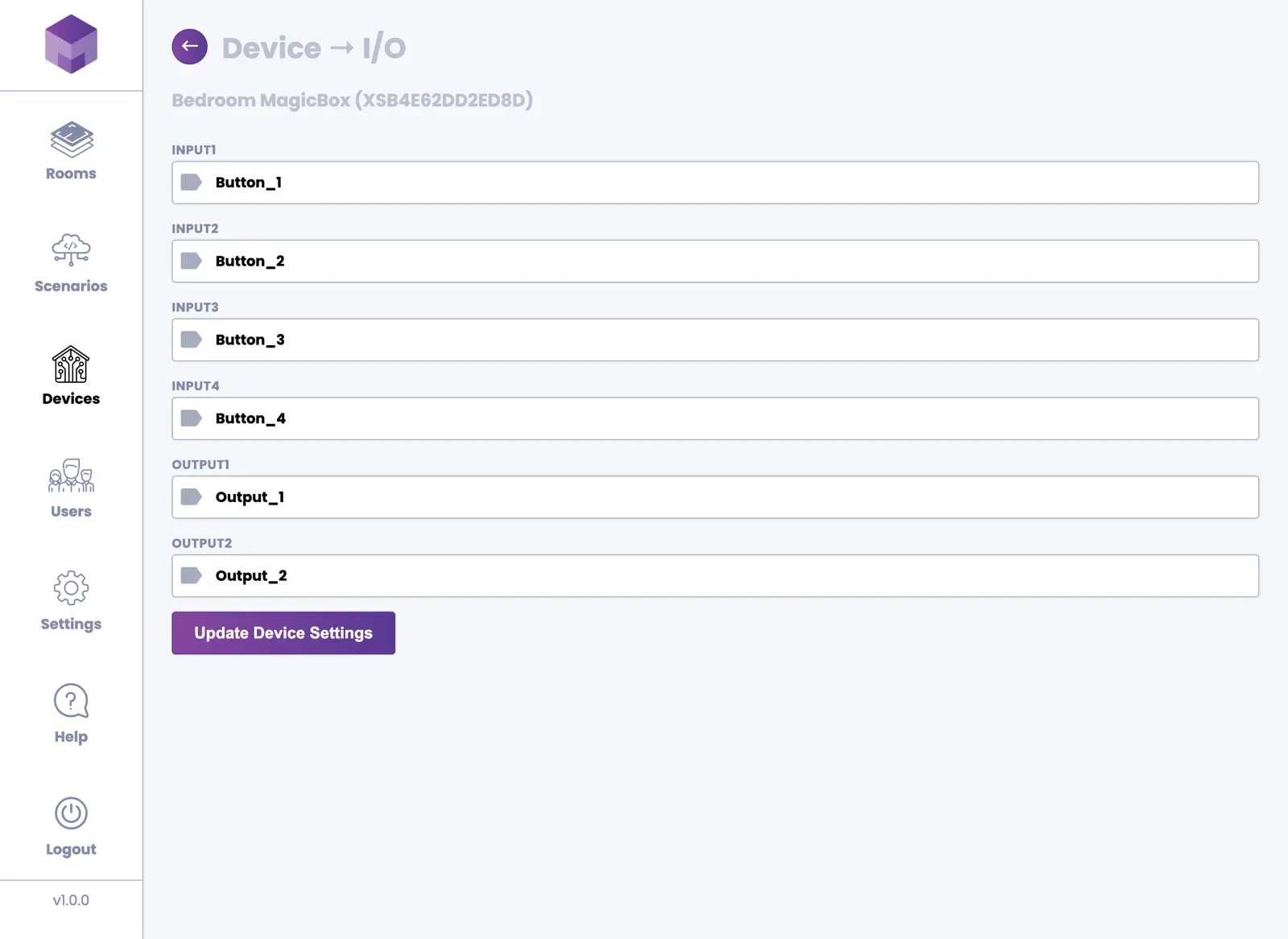
The I/O settings screen allows you to change the names of the inputs and outputs. These names will be helpful when you create scenarios, making it easier to recognize specific inputs and outputs for each device.
Screen Order
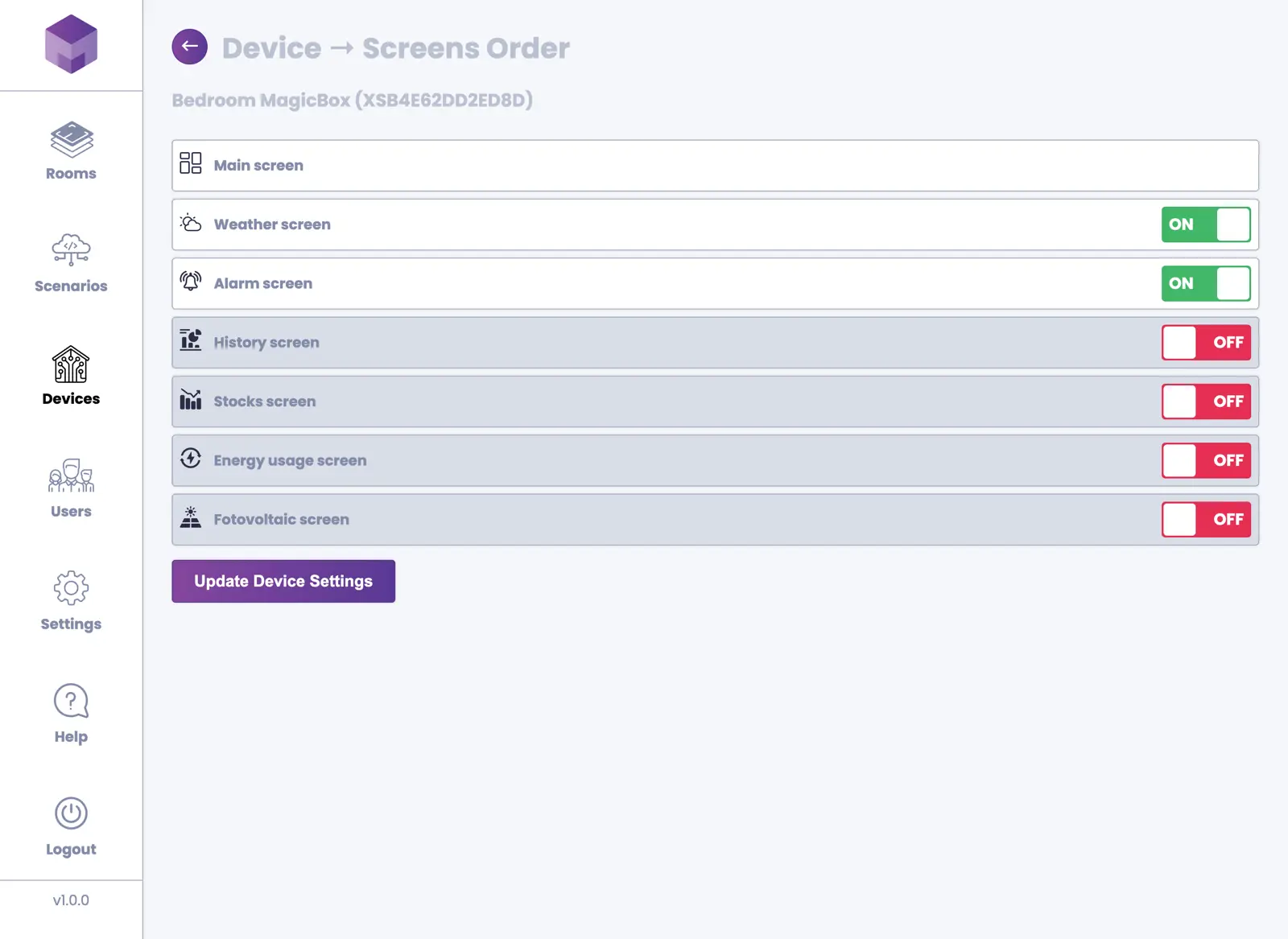
Screen Order settings allow you to organize the order of screens displayed on the MagicBox® device. You can deactivate screens you won't be using. The available screens for ordering are:
- Main Screen
- Weather Screen
- Alarm Screen
- History Screen
- Stocks Screen
- Energy Usage Screen
- Photovoltaic Screen
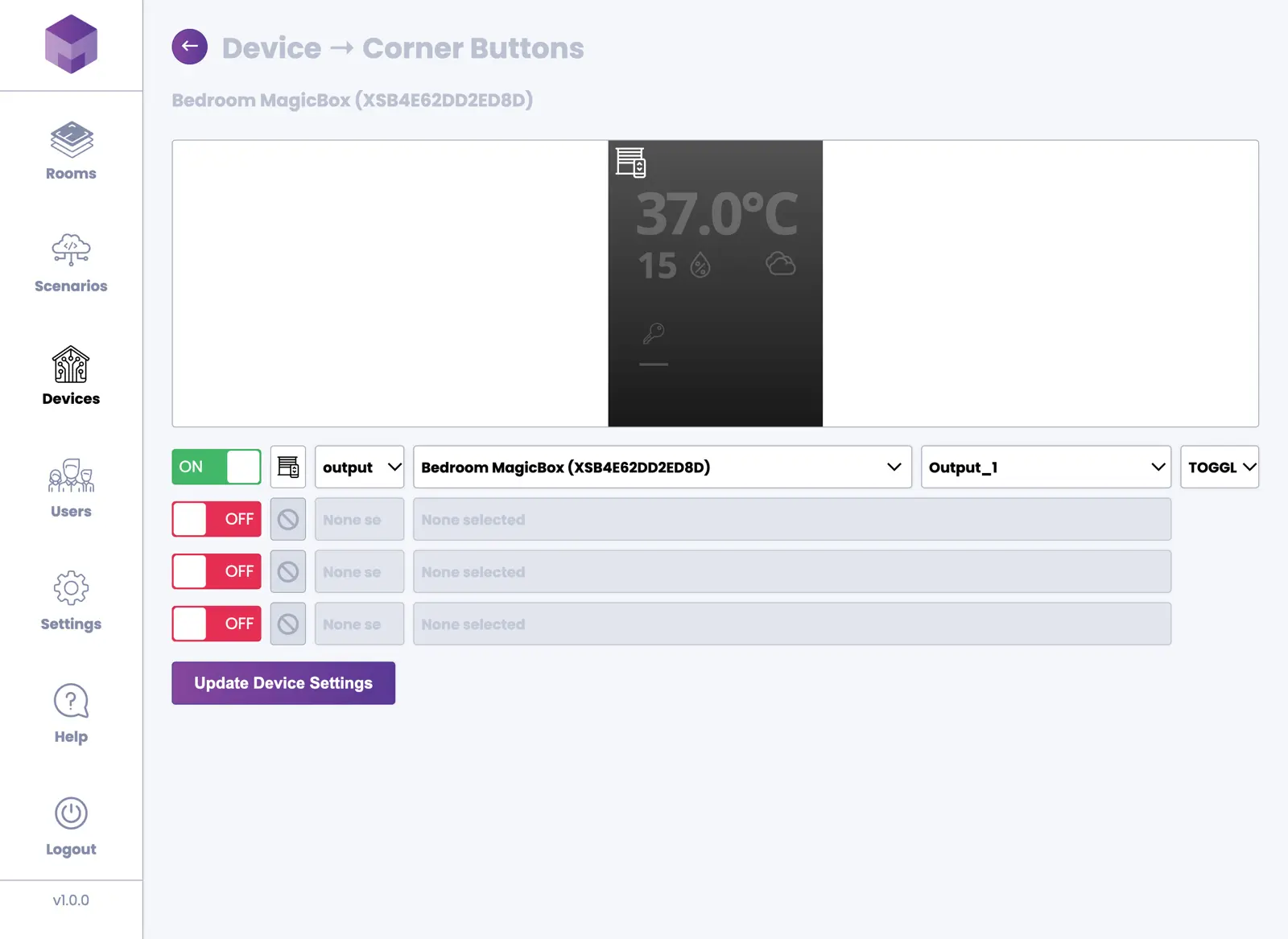
Corner Buttons
The MagicBox® device has four physical buttons. You can assign a scenario or specific output to each button. Assigning a scenario gives you the option to turn it ON, OFF, or TOGGLE. Selecting an output allows you to choose the output of a specific device and toggle it ON or OFF.
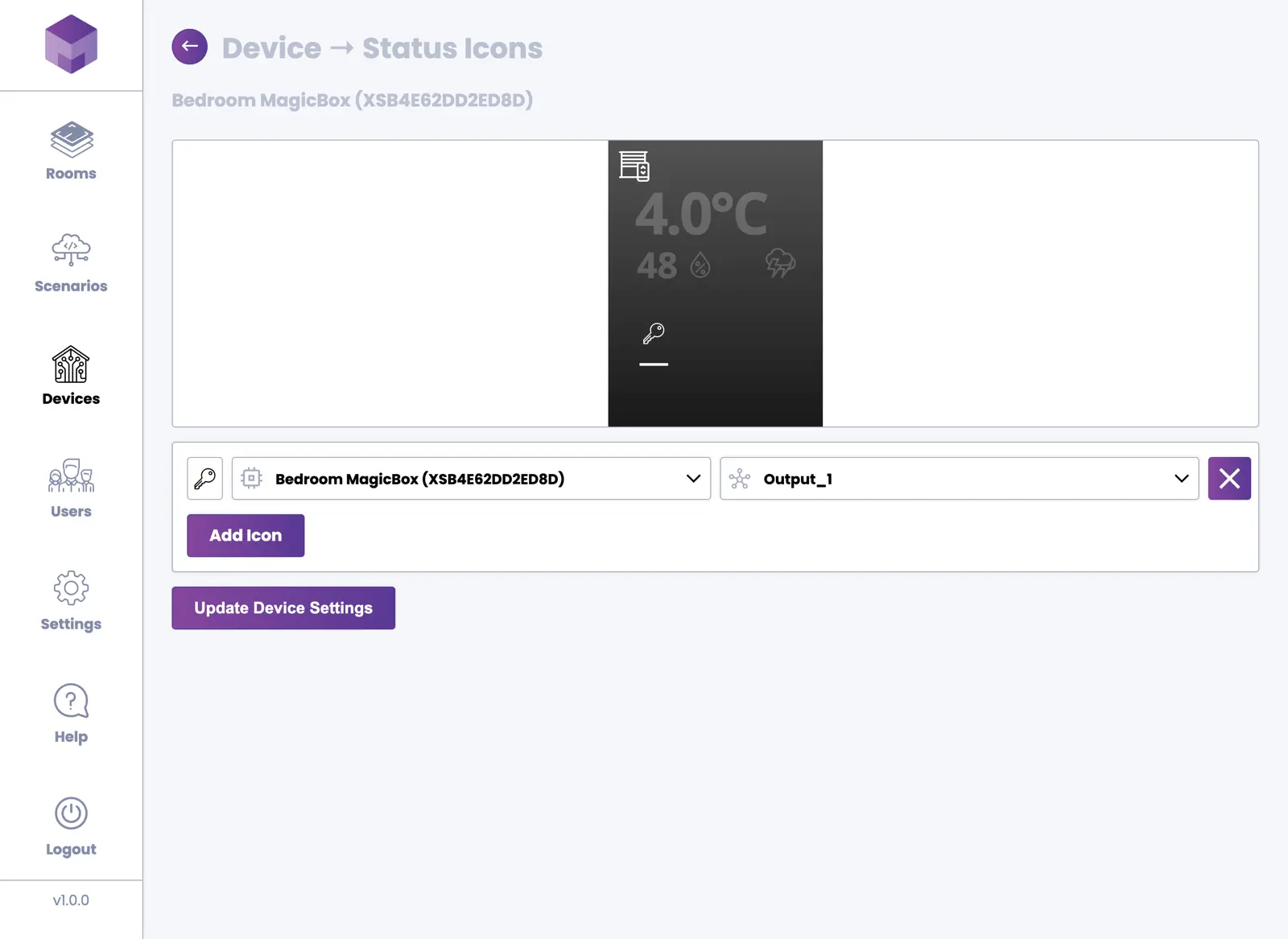
Status Icons
The Status Icons screen allows you to configure which status indicators appear on your MagicBox® device display. You can customize which system states and alerts are shown, helping you monitor important information at a glance.
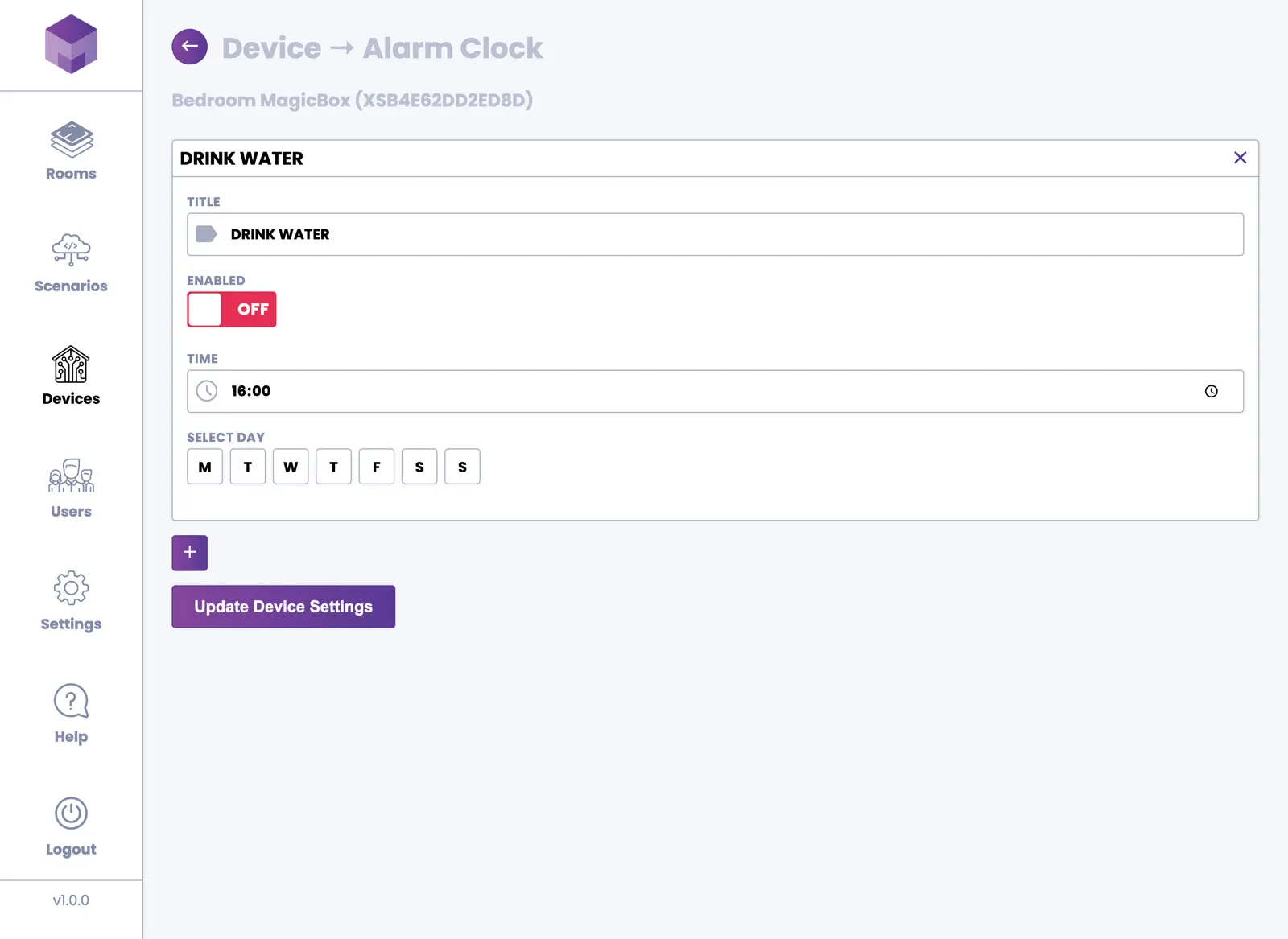
Alarm Clock
The MagicBox® device allows you to configure an alarm clock. You can set up a one-time alarm or configure a recurring alarm to activate at specific times on specific days.
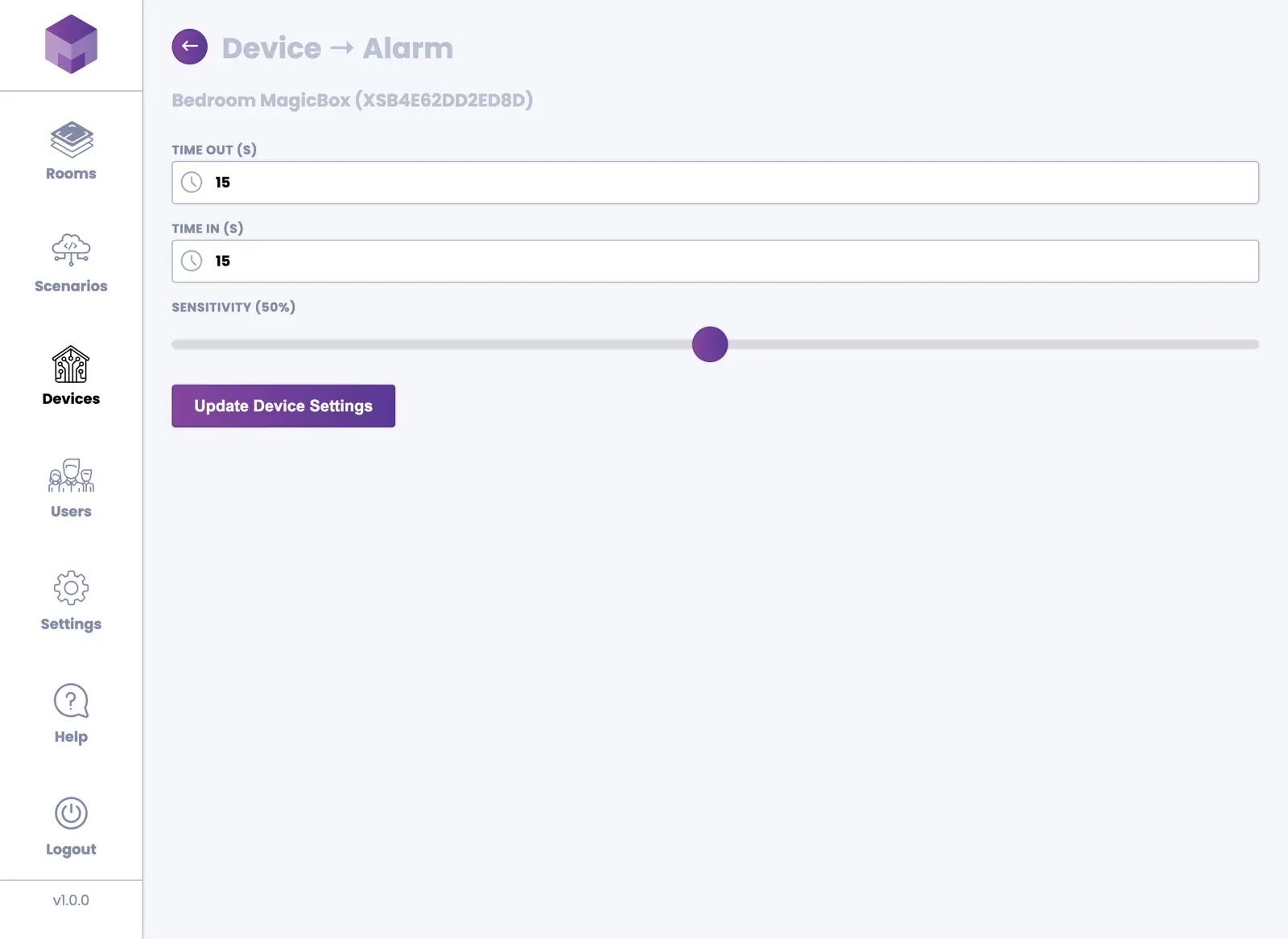
Alarm
On the Alarm screen, you can configure the timing for arming and disarming your alarm system. The time unit is in seconds and represents the delay before the alarm activates (when arming as you leave) and deactivates (when disarming as you return home). You can also adjust the alarm sensitivity, which determines how sensitive the sensors need to be to trigger the alarm.
Stocks
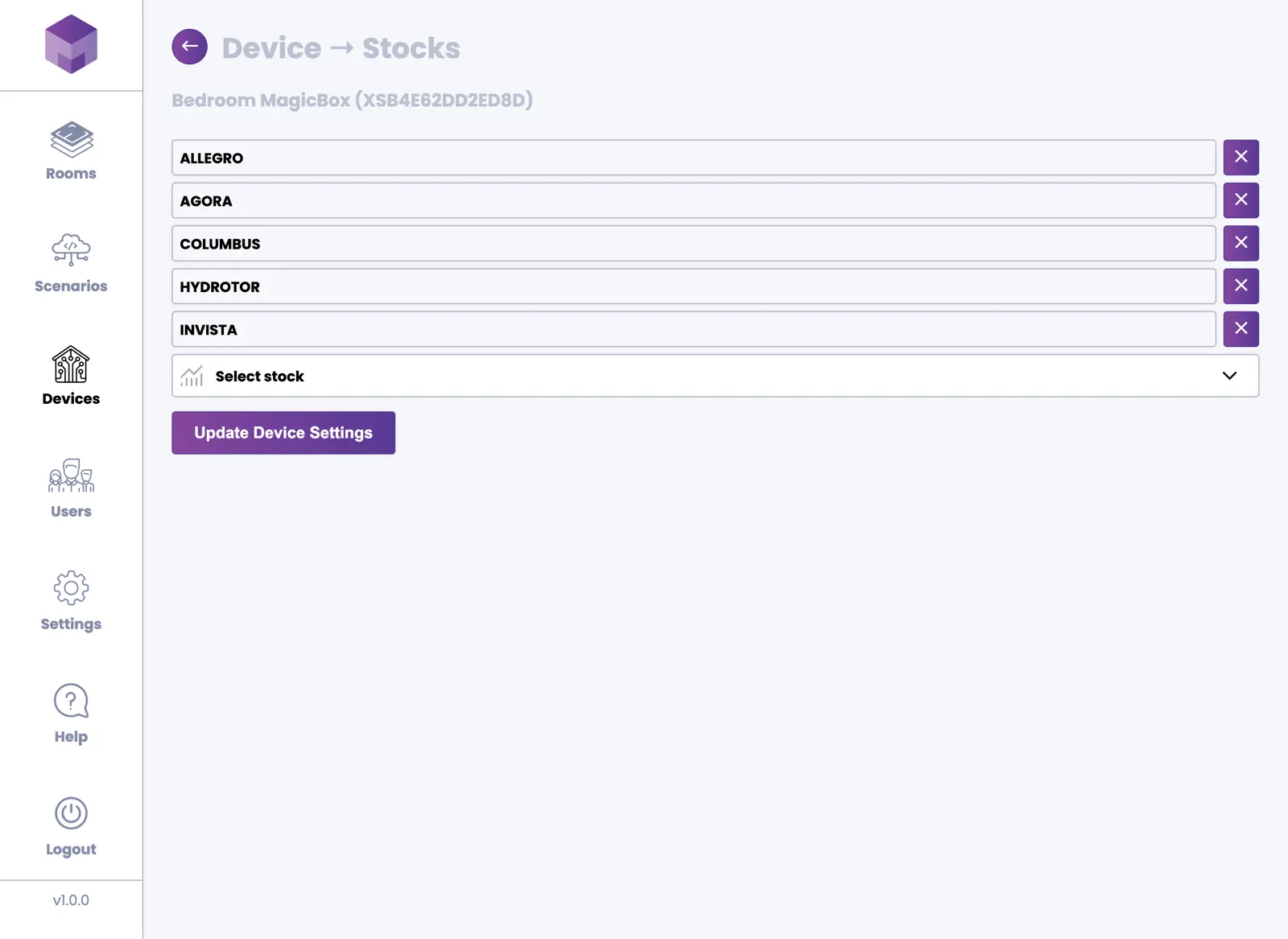
The Stocks screen allows you to select which stocks you would like to monitor. Select a stock from the dropdown menu and add it to your list. The selected stocks will be displayed on the MagicBox® screen with real-time updates throughout the trading day.
Weather
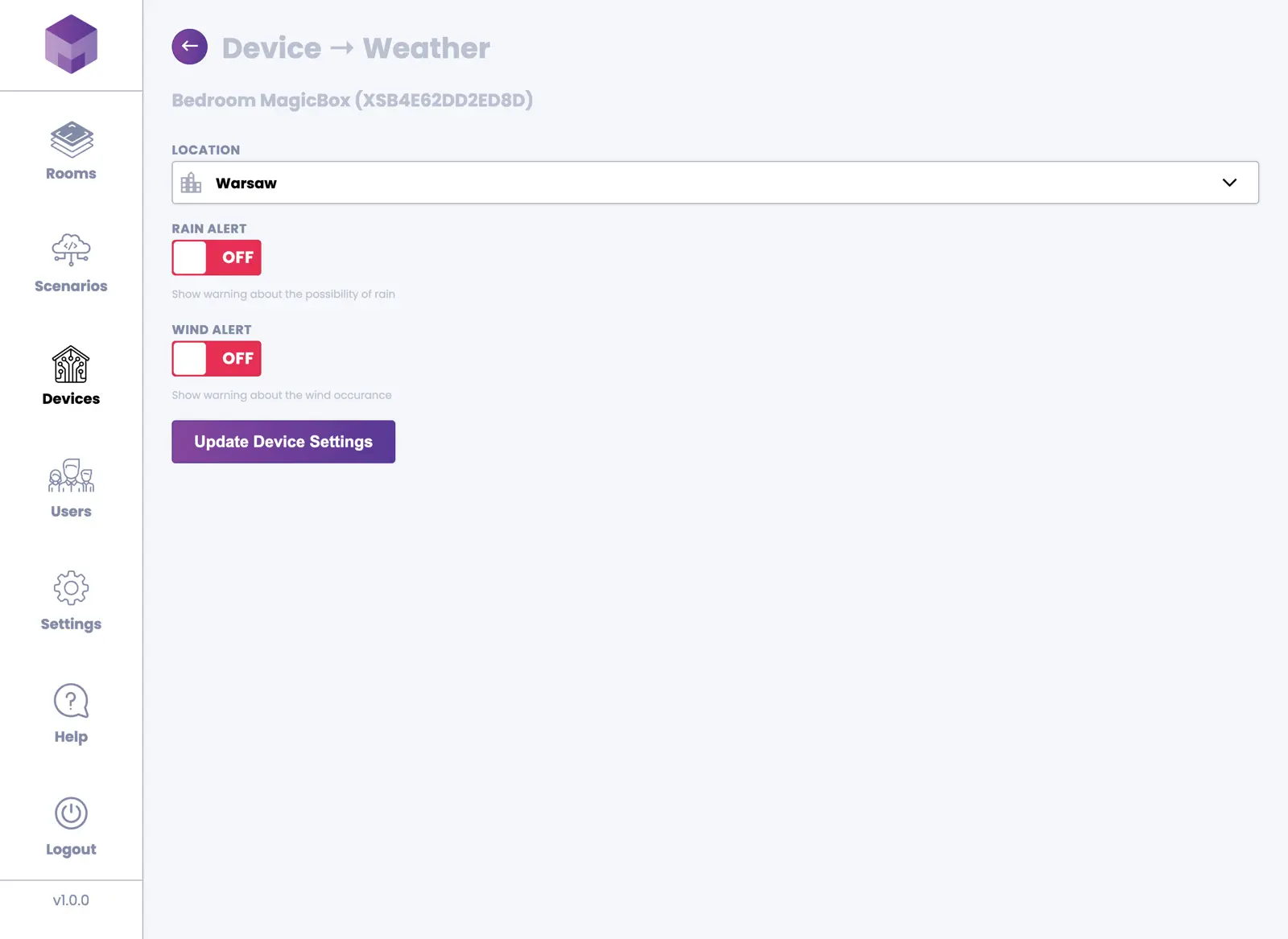
The Weather screen allows you to select your city location. This connects to a weather API and updates the weather status icon throughout the day. You can enable rain and wind alerts, which will be displayed when conditions meet your criteria. You can also specify the wind speed threshold that will trigger the wind alert.
Thermostat
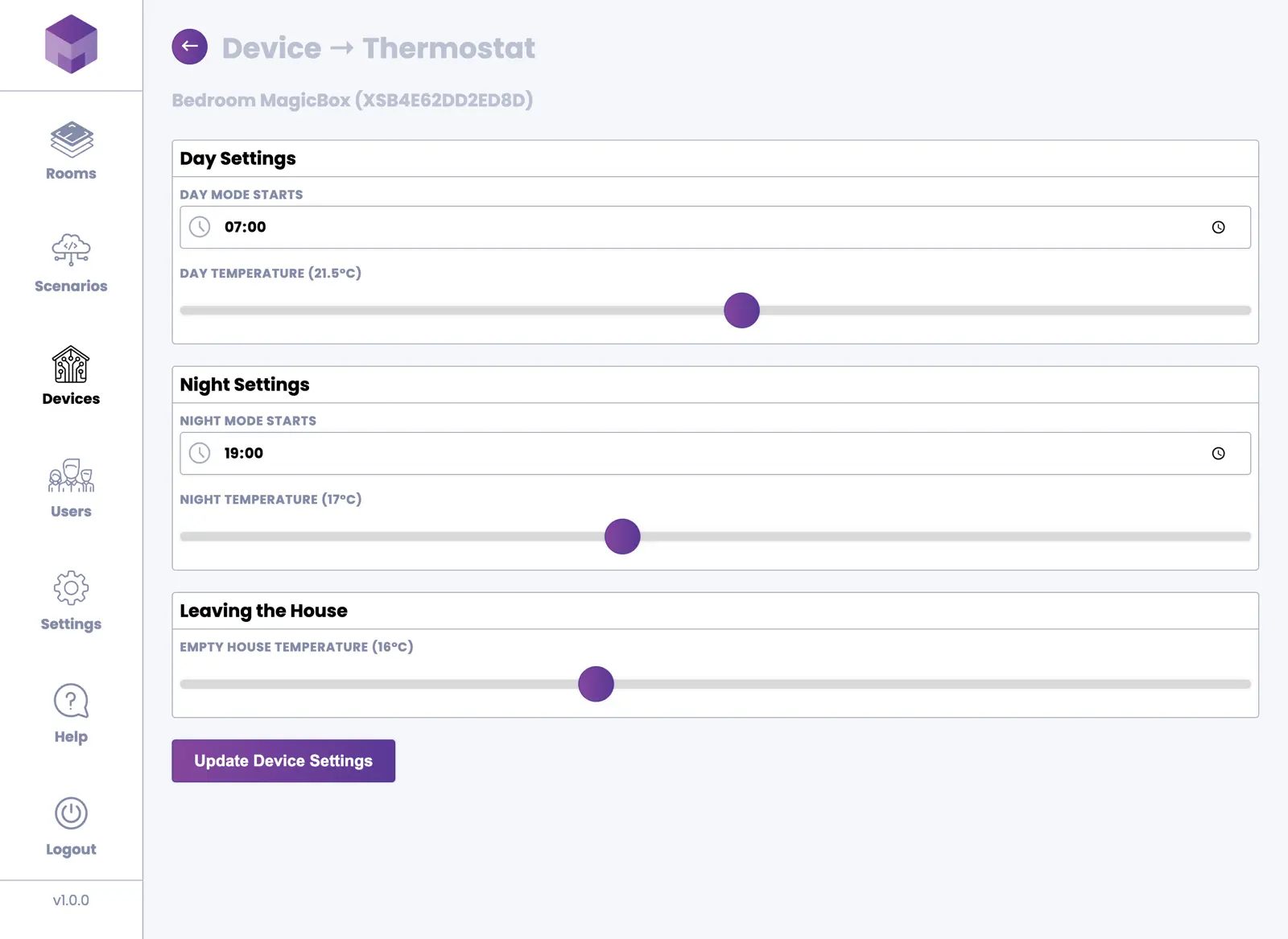
Thermostat settings allow you to configure different temperature targets for day and night periods. You can specify when your day and night periods begin. You can also set a "Leaving the house" temperature, which will be applied whenever you leave your home.
3. Removing a Device
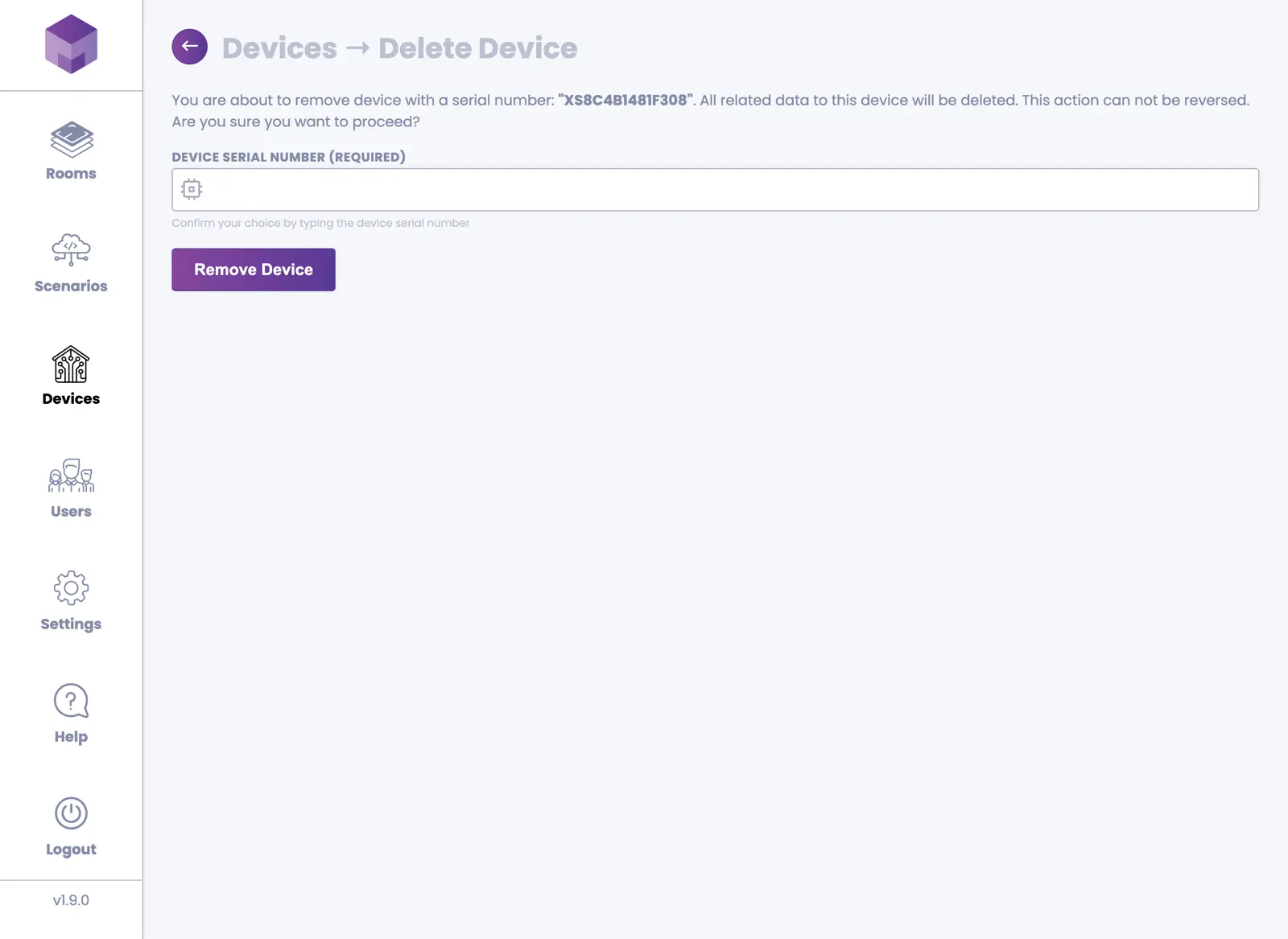
To delete a device, press the "manage device" link at the bottom of the device tile. Once you enter the "Manage Device" screen, press the Remove Device button in the top right corner. This will open the "Delete Device" screen. To delete the device, enter the serial number of the device and press the Remove Device button.