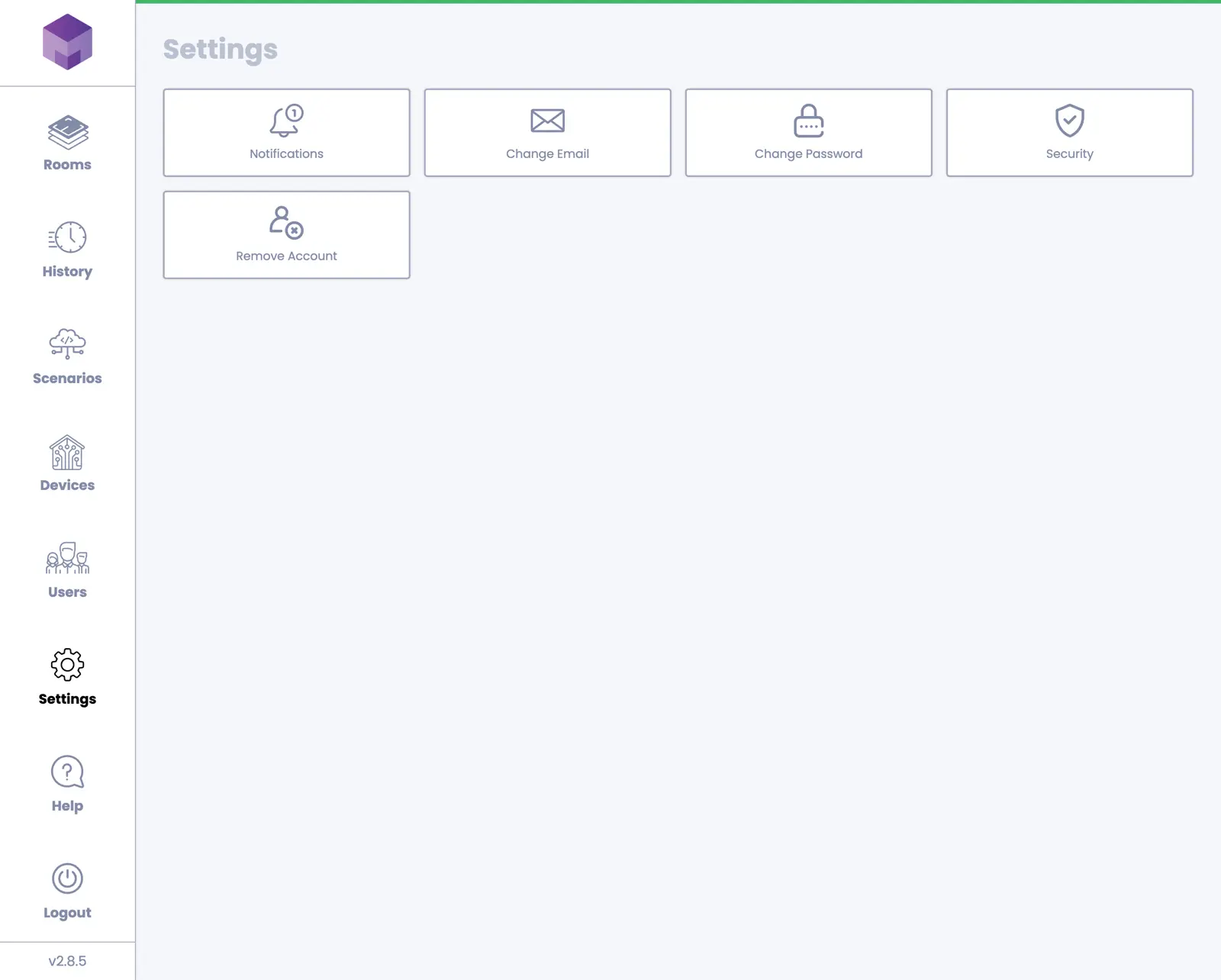
Account Management
To manage your account settings, press the Settings navigation item. You will be presented with several option tabs where you can configure your alarm PINs, notification preferences, email address, password, and security settings. These tabs give you complete control over your account and how you interact with the application.
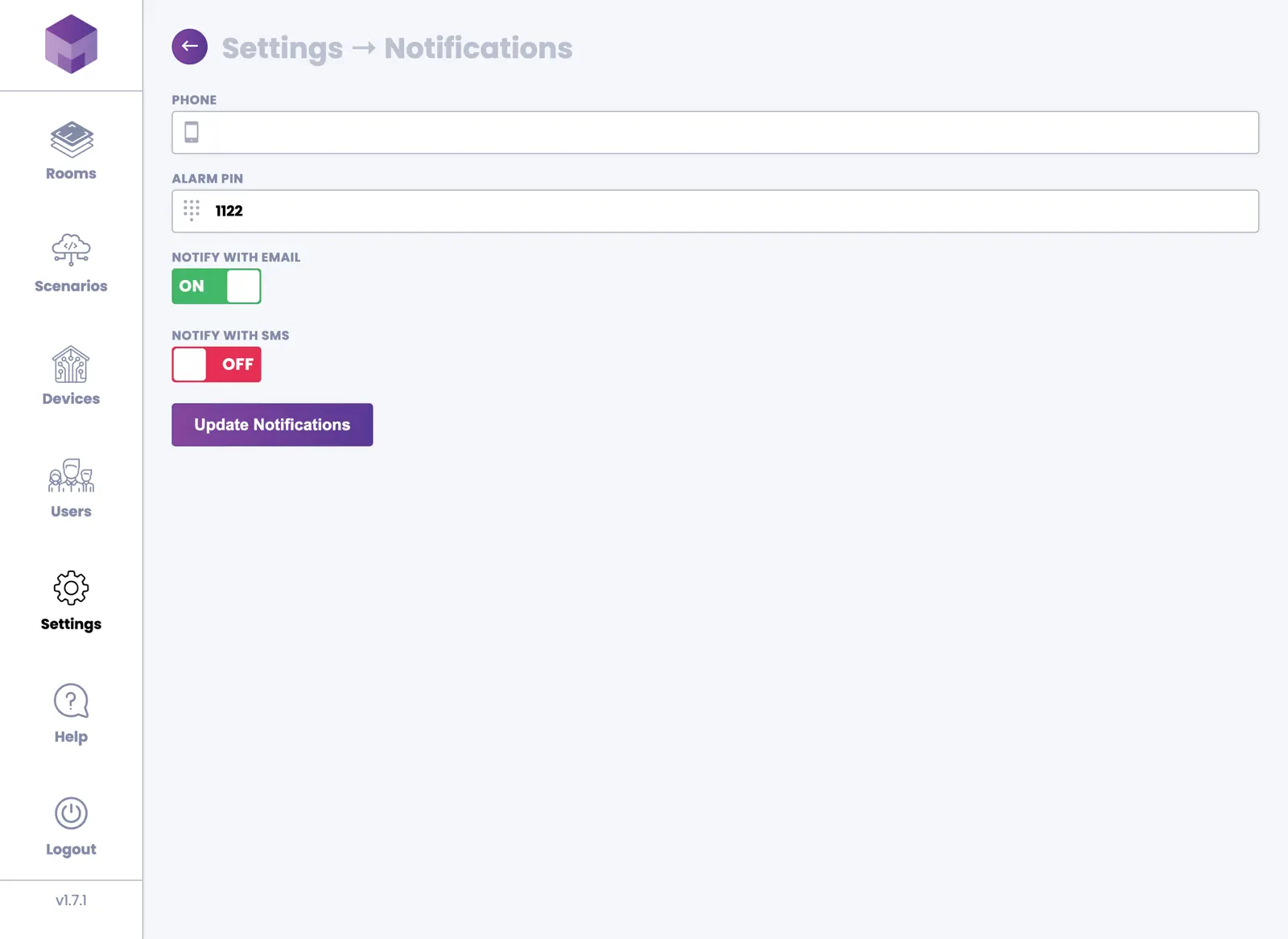
1. Notifications
You can configure your alarm PINs for arming or disarming the system. Additionally, set your preferred notification method to receive alerts about alarm events and other important system activities.
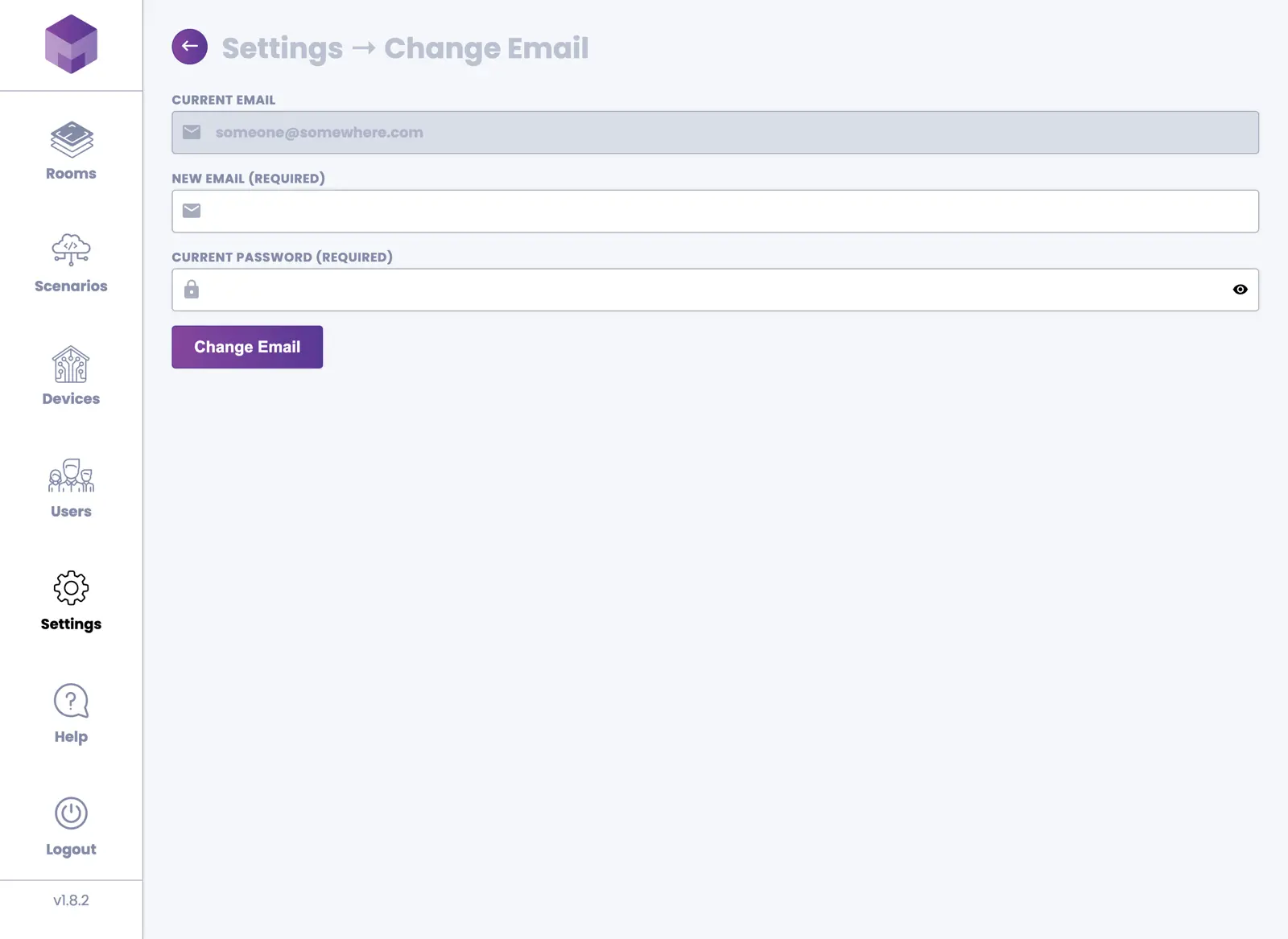
2. Change Email
You can change the email address associated with your account (the email you use when logging into the application). Enter your current password and the new email address you would like to use going forward. Then press the Change Email button to confirm the change.
3. Change Password
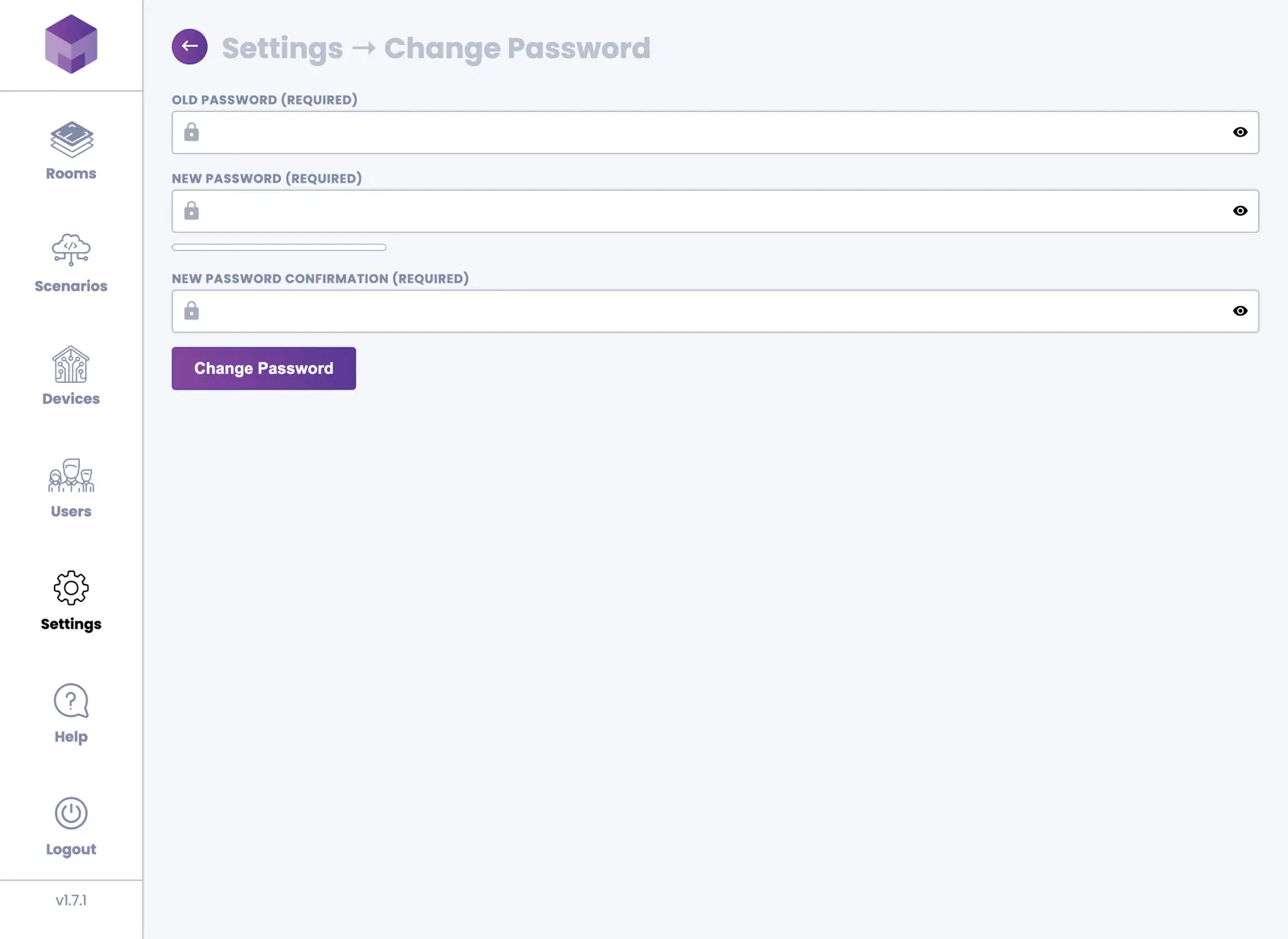
You can update your password by entering your old password and typing the new password twice for confirmation. Press the Change Password button to save the changes.
4. Security
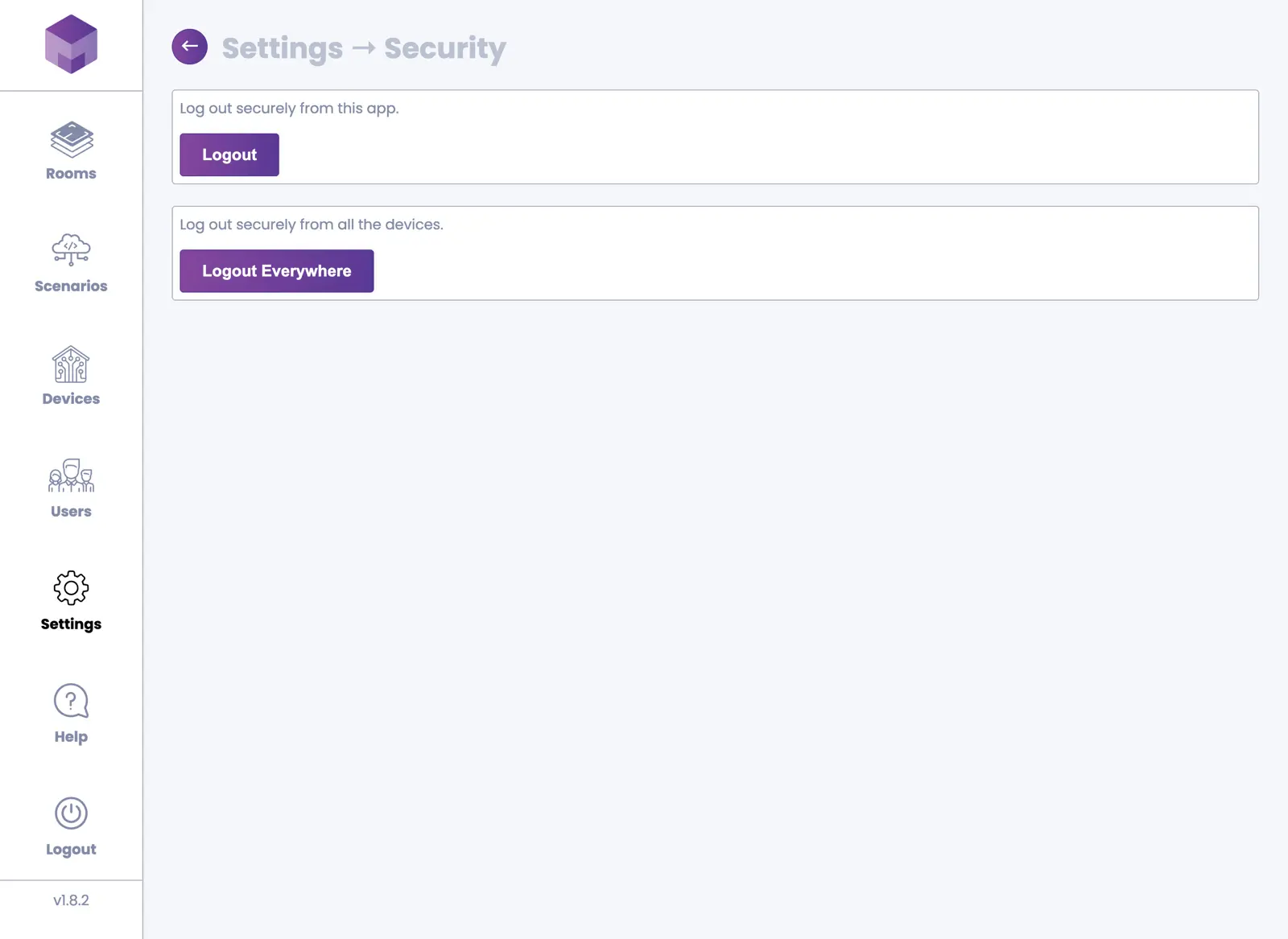
You can log out from your current session or log out from all sessions simultaneously (including all other devices where you're logged in). Press the Logout Everywhere button to end all active sessions.
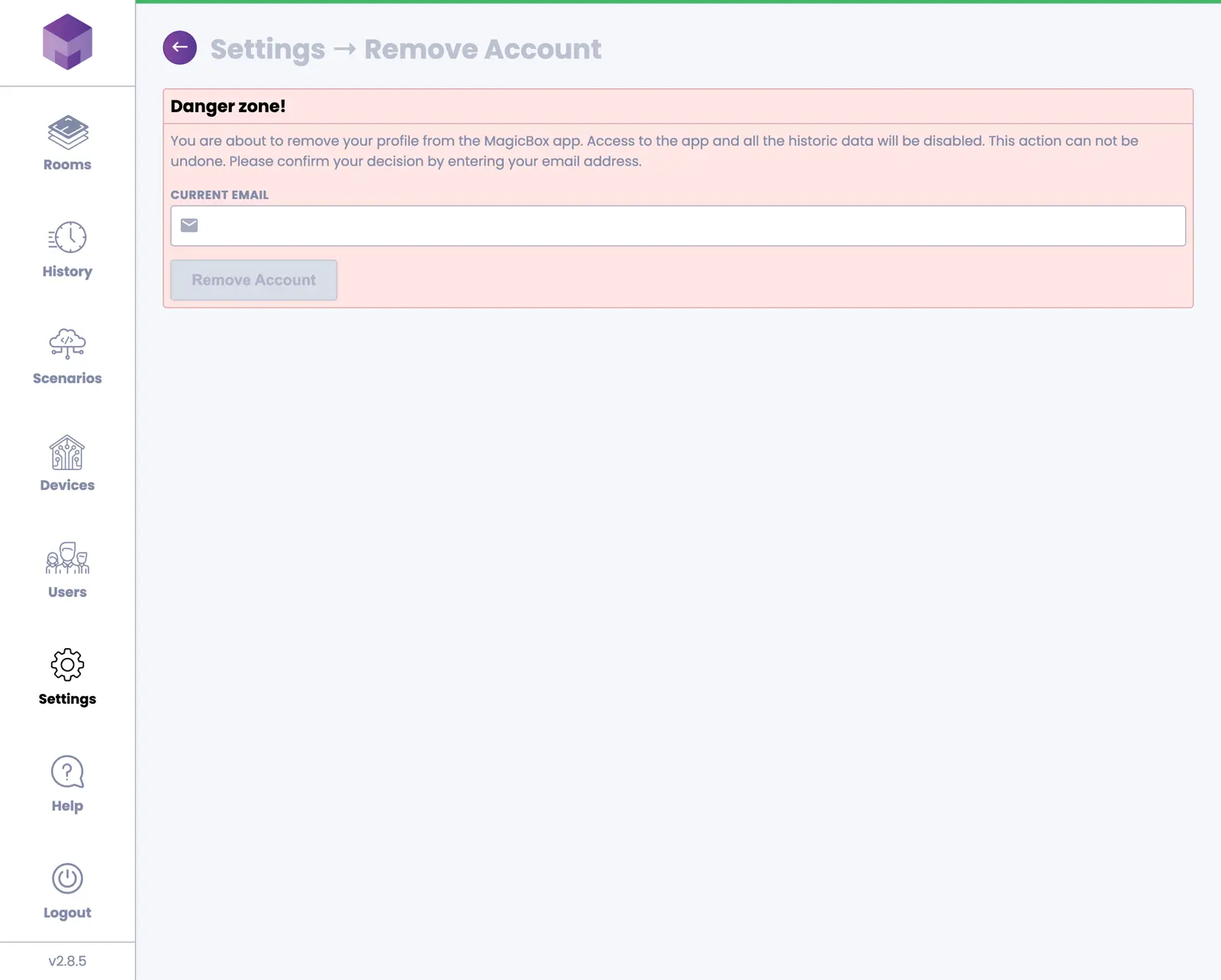
5. Remove Account
You can permanently remove your account and all associated data. Enter your email address and press the Remove Account button to proceed with account deletion.